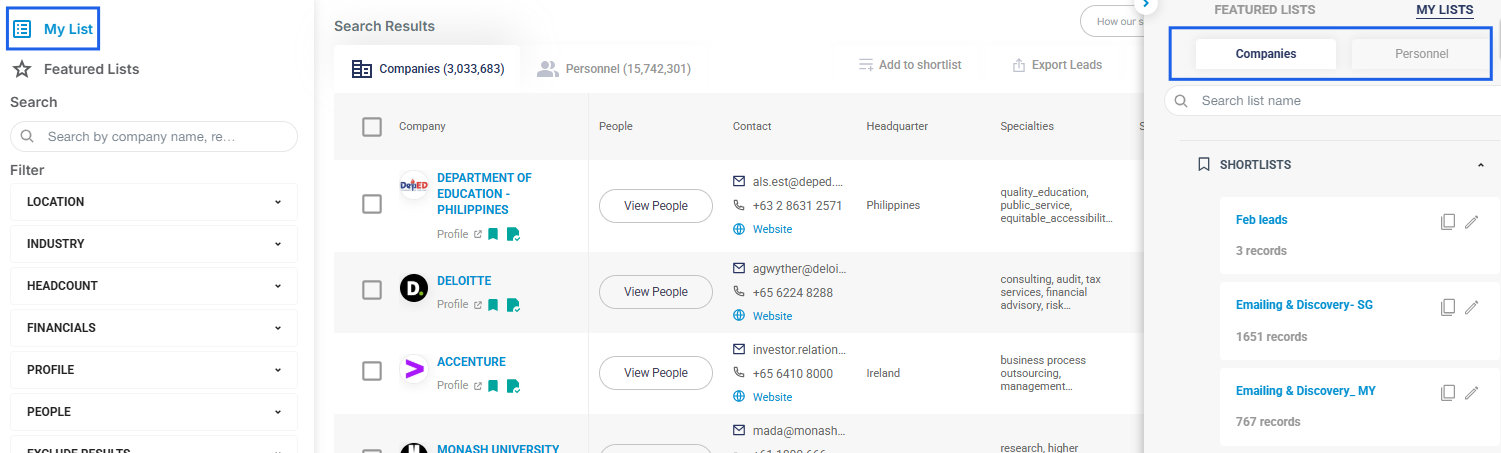
Shortlist is a feature that allows you to save a list of companies and personnel you would like to approach
Think of it as a tool to delegate leads to different team members or segment them into different lists, such as by industry, headcount, or in a way that best matches your workflow.
The Shortlist function can be used in both the Company tab and the Personnel tab.
There are two methods to do so: bulk selection and individual selection.
Method 1: Bulk selection
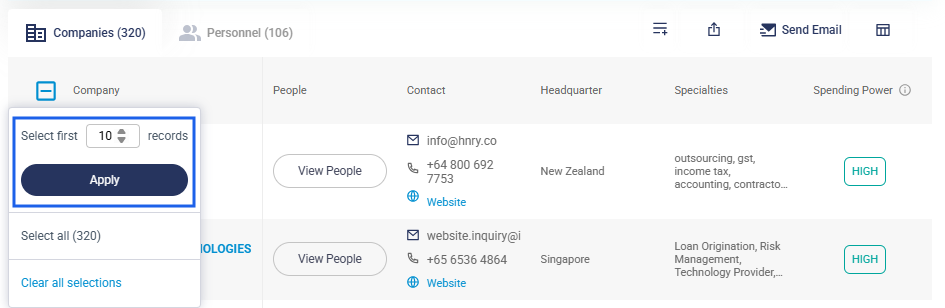
Step 1: After applying filters, click on the checkbox on the left side of the results table then enter the desired amount of records you wish to shortlist which is based on a “first” basis. In other words, when you enter 10, you will be selecting the first 10 records of the results. Click on Apply.
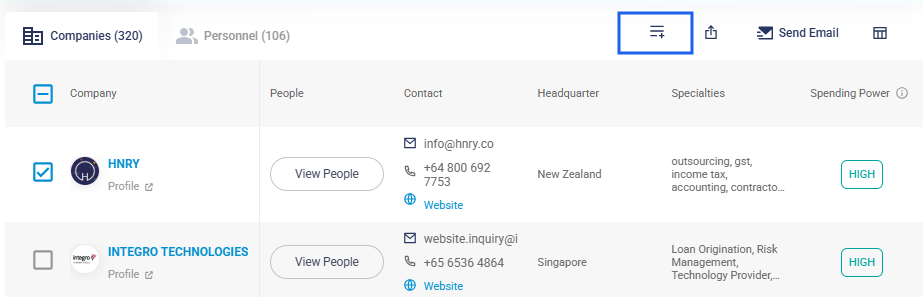
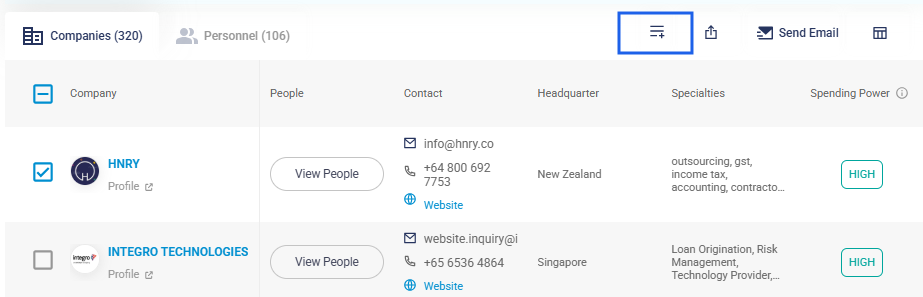
Step 2:Click on the icon at the top right of the results table, and a pop-up will appear to shortlist.
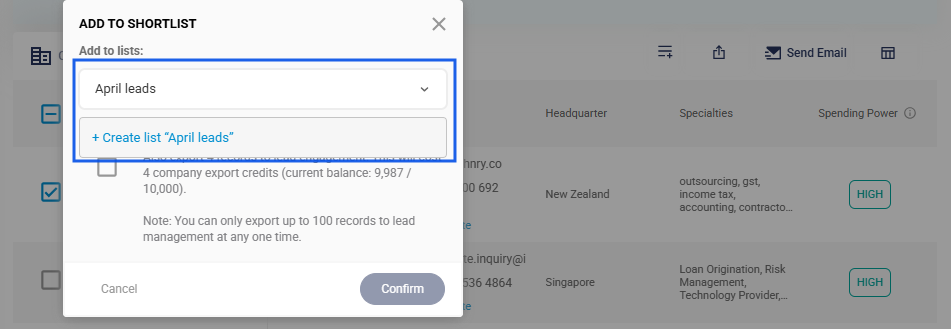
Step 3: Provide a name for the Shortlist and click Confirm to save the list.
Method 2: Individual record selection
Step1:Review the records individually and select records by clicking on the checkbox.
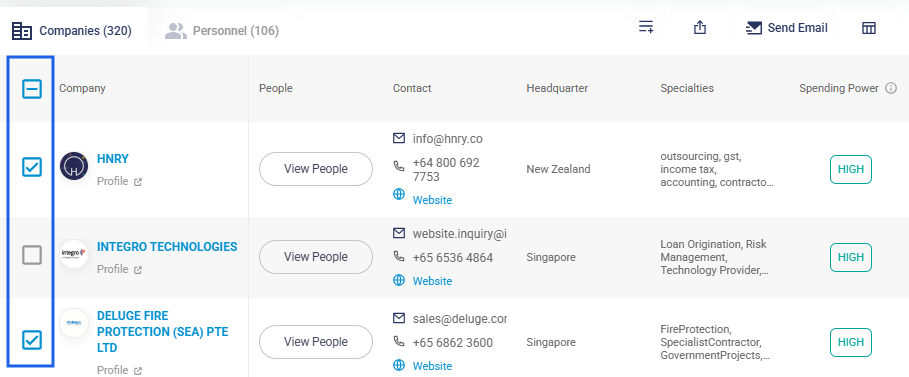
Step 2: Once you have selected the records of your choice, click on the icon at the top right of the results table and a pop-up will appear to shortlist.
Step 3: Provide a name for the Shortlist and click Confirm to save the list.
All Shortlists can be found under "My List" and are divided into Company and Personnel and can be deleted anytime when it is no longer needed.