The Export CSV feature allows you to export a list of selected personnel from The Grid into a CSV file. However, keep in mind that there is an export limit depending on the plan you have subscribed to.
With this feature, you can:
- Download and share the file with your colleagues easily.
- Upload the list to your CRM or other tools without manually inputting records.
There are two methods to export company records:
Method 1: Bulk Selection and Export
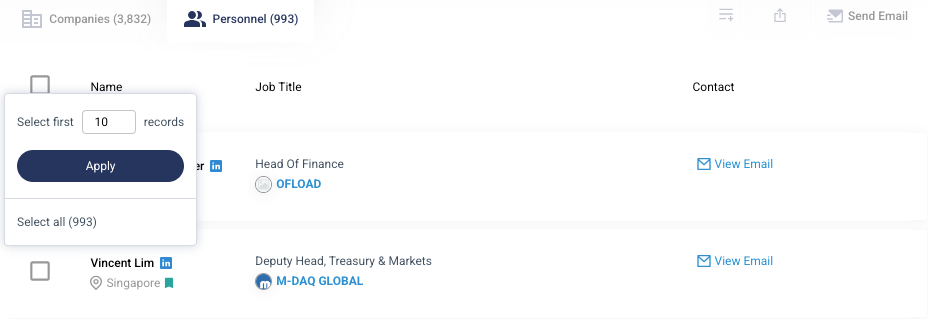
Step 1: After applying filters, click on the checkbox field located at the top corner of the results table. Enter the number of records you wish to export, then click Apply. This follows a first-in order, meaning if you enter "10," the system selects the first 10 records from the results.
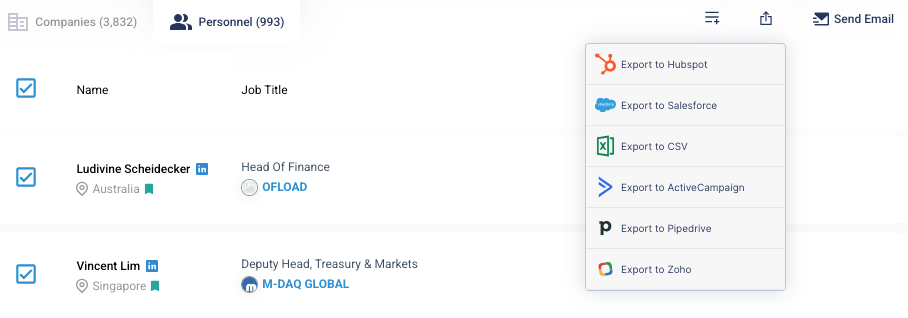
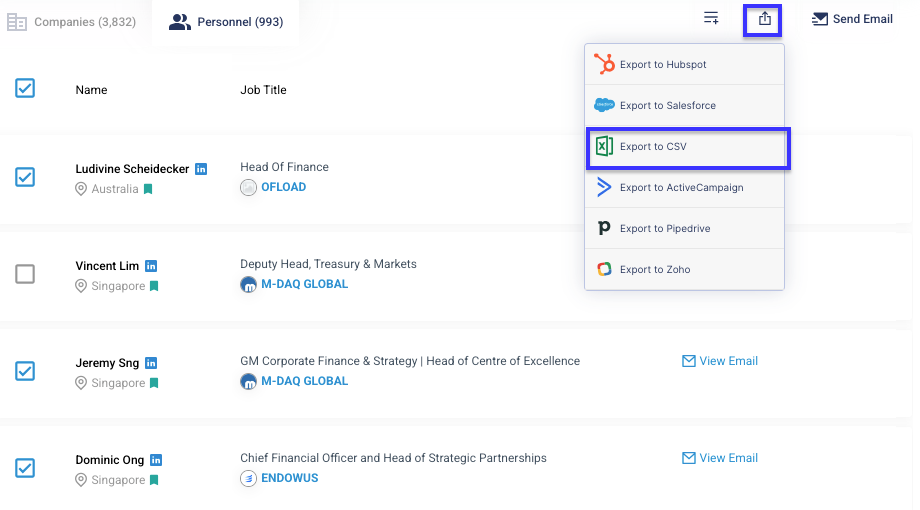
Step 2: Click on the Export icon at the top right of the results table and select Export to CSV.
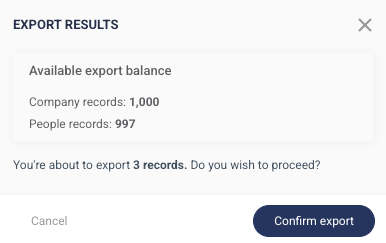
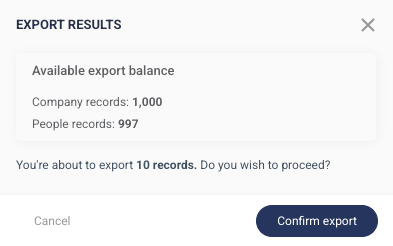
Step 3: A pop-up will appear showing your remaining credits and the total credits that will be deducted. Click Confirm Export if you wish to proceed.
Method 2: Selecting Personnel Individually
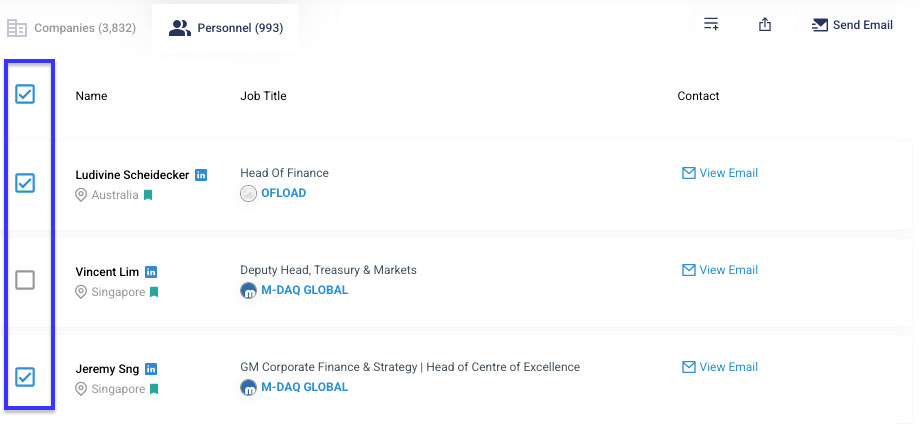
Step 1: If you want to export only specific records, apply filters and review the personnels. Click on the checkbox next to each record you want to export.
Step 2: Click on the Export icon at the top right of the results table and select Export to CSV.
Step 3: A pop-up will appear showing your remaining credits and the total credits that will be deducted. Click Confirm Export if you wish to proceed